
FF Tools Pro Mod APK (Latest Free Fire Injector) Download For Android
How to install FF Tools Pro Mod APK (Latest Free Fire Injector) Download For Android APK?
1. Tap the downloaded FF Tools Pro Mod APK (Latest Free Fire Injector) Download For Android APK file.
2. Touch install.
3. Follow the steps on the screen.
Description
Garena Free Fire is a fast-paced battle royale game where quick reactions, accurate aiming, and smooth controls can make a real difference. Many players look for additional tools to customize their gaming setup, adjust sensitivity, and improve how their phones handle matches. FF Tools Pro MOD APK is an Android utility associated with these gameplay preferences.
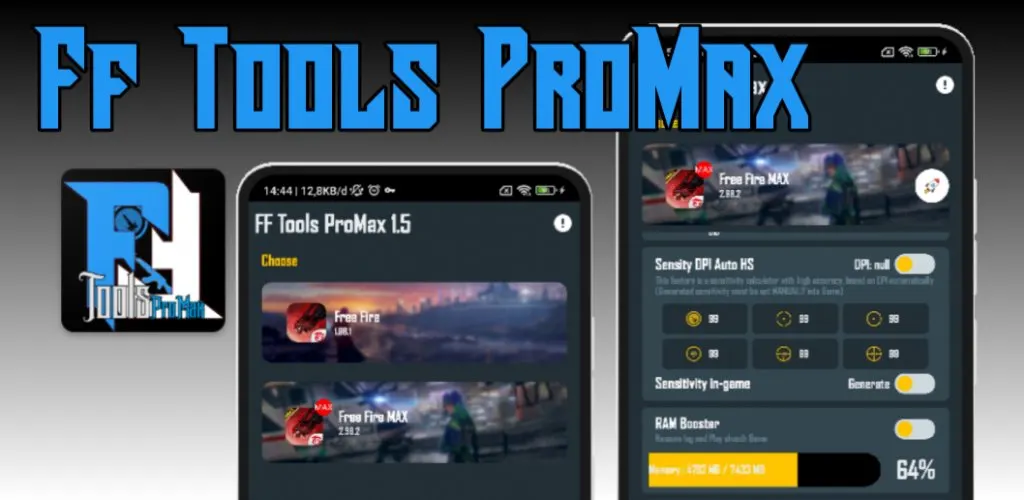
FF Tools Pro focuses on settings and optimization options for mobile gaming. Its commonly listed functions include sensitivity adjustments, RAM optimization, cache cleaning, graphics options, and tools for managing gaming performance. These features appeal to players who want to experiment with different settings and find a comfortable setup for their devices. The exact options depend on the app version.
In this guide, you will learn about FF Tools Pro MOD APK, its main features, how its tools work, installation steps, compatibility, and ways to configure your Free Fire gaming setup. Whether you play Free Fire casually or enjoy competitive matches, understanding these options can help you choose settings that suit your playing style.
What Is FF Tools Pro MOD APK?
FF Tools Pro MOD APK is an Android application associated with utility tools for Garena Free Fire and other mobile shooting games. It provides a collection of settings designed to help players adjust aspects of their gaming experience from a separate interface.
The application is particularly relevant to players who want to explore sensitivity settings, manage background processes, clear temporary files, or review available graphics options. Instead of changing every setting manually through different phone menus, users can explore the options presented within the tool.
FF Tools Pro is a separate utility rather than a standalone battle royale game. You still need Free Fire installed to play regular matches. Its role is to provide additional configuration and optimization options, depending on the functions supported by the installed version.
The application is worth exploring if you enjoy adjusting your controls and experimenting with different gaming configurations. Before using a particular option, check its description and make sure it matches your device and the version of Free Fire you play. If you love to play NBA then visit the NBA 2K26 MOD APK.
FF Tools Pro MOD APK Details
| App Information | Details |
| App name | FF Tools Pro MOD APK |
| Category | Gaming utility |
| Related game | Garena Free Fire |
| Platform | Android |
| Main purpose | Gaming settings and optimization |
| Common tools | Sensitivity settings, cache cleaning, RAM optimization |
| Graphics options | Depend on the available version |
| Interface | Utility dashboard |
| Installation format | APK |
| Internet requirement | Depends on the app’s functions |
| Developer | Check the specific app listing |
The exact app version, file size, and Android requirements should match the APK you choose to install.
Key Features of FF Tools Pro MOD APK
1. Sensitivity Settings
Sensitivity is an important part of Free Fire gameplay. It affects how quickly the camera responds when you move your finger across the screen. A suitable configuration can make it easier to track opponents, control movement, and adjust your aim.
FF Tools Pro versions commonly advertise sensitivity-related options for players who want to experiment with their controls. Different sensitivity levels can feel better for different devices, screen sizes, and playing styles.
Players who prefer aggressive close-range combat may like a responsive camera, while those who focus on longer-range engagements may prefer more controlled movement. Start with settings that feel comfortable and make small adjustments after testing them in practice.
2. RAM Optimization
Mobile games use system memory to load characters, environments, animations, and other resources. Background applications can also consume RAM while you play.
FF Tools Pro is associated with RAM optimization features that help users manage their gaming setup. Closing unnecessary background applications through your phone’s supported controls can free resources for active tasks.
The actual improvement depends on your phone, available memory, and running applications. A device with limited RAM may benefit from a cleaner gaming setup, while a newer phone may already manage its resources efficiently.
3. Lag Optimization
Lag can interrupt movement, delay actions, and make combat feel less responsive. It can result from several factors, including network conditions, background activity, high graphics settings, or limited device performance.
Some FF Tools Pro versions offer options marketed for lag optimization. These tools focus on helping users configure their gaming environment and manage selected device settings.
For the best results, also check your Wi-Fi or mobile data connection, close unnecessary applications, and select graphics settings that your phone can handle comfortably.
4. Graphics Configuration
Graphics settings influence the appearance and performance of mobile games. Higher visual settings can produce more detailed environments, while lower settings may help some devices maintain steadier gameplay. The graphics are same like the LGSA GTA SA MOD APK.
Certain FF Tools Pro releases advertise graphics-related configuration options. The available controls depend on the specific app version and the game it supports.
Choose settings according to your priorities. If you prefer smoother matches, prioritize stable performance. If your phone handles the game comfortably, you can experiment with the available visual options.
5. Cache Cleaning
Applications store temporary files to support different functions and reduce the need to recreate certain data. Over time, cached data can occupy storage space.
FF Tools utilities commonly list cache-cleaning features that help users manage temporary files. Clearing an application’s cache can sometimes resolve minor loading issues or free storage space.
Cache cleaning does not replace the need for sufficient storage or solve every performance problem. Use the relevant Android settings when you want to review an application’s storage and cached data.
6. Control Customization
Every Free Fire player develops a preferred way to move, aim, and shoot. Some prefer a simple control layout, while others use a customized HUD with repositioned buttons.
FF Tools Pro is often associated with sensitivity and control-related options. These settings can help players explore a configuration that matches their habits, although the exact controls available depend on the version.
For more direct control, Free Fire also provides its own HUD customization settings. You can move buttons, adjust their size, and practice different layouts until you find one that feels natural.
7. Tools for Different Devices
Players use Free Fire on phones with different screen sizes, processors, memory capacities, and display refresh rates. A configuration that feels responsive on one device might not feel the same on another.
Optimization utilities give users another place to explore settings and review their gaming setup. Players with entry-level phones can focus on simpler graphics and fewer background applications, while more powerful devices can use the options supported by their hardware.
The goal is to choose a balanced configuration rather than apply the highest setting to every available option.
How FF Tools Pro MOD APK Helps Free Fire Players
FF Tools Pro brings several gaming-related options together in one application. Its main appeal is the ability to explore settings without treating every adjustment as a separate task.
Better Control Over Sensitivity
Sensitivity adjustments help players experiment with camera movement and aiming response. Finding a comfortable level can make practice sessions more consistent.
A More Organized Gaming Setup
Having optimization options grouped in one interface can make it easier to review the available tools and select the settings you want to use.
Device Performance Management
Managing background applications and temporary files can support a cleaner gaming environment. Results depend on your device and the resources it has available.
Personalized Settings
Players can experiment with different configurations instead of copying settings from someone who uses a different phone or control layout.
How to Download FF Tools Pro MOD APK
If you want to try FF Tools Pro on Android, first check the app details and confirm that the available version supports your device.
- Check the FF Tools Pro app listing and its available version information.
- Review the listed features and Android compatibility requirements.
- Download the APK from a source you trust.
- Locate the downloaded file in your phone’s Downloads folder.
- Open the APK and follow Android’s installation prompts.
- Launch the application after installation.
- Review the available tools before changing your gaming settings.
The exact installation process can differ between Android versions. If your phone displays an installation prompt, follow the instructions shown by the operating system.
How to Use FF Tools Pro with Free Fire
Step 1: Open the Application
Launch FF Tools Pro and review its main interface. Identify the available tools before selecting any configuration.
Step 2: Choose a Suitable Setting
Start with the options that match your needs, such as sensitivity adjustments or available optimization tools. Read the description of each setting before applying it.
Step 3: Adjust Sensitivity Gradually
Avoid changing every sensitivity value at once. Make one adjustment, test your controls, and decide whether the new setting feels comfortable.
Step 4: Review Performance Options
Check the available graphics or optimization settings. Choose options that fit your device rather than assuming that the highest values will provide the best experience.
Step 5: Open Free Fire and Practice
Launch Free Fire and test your regular controls in a suitable practice environment. Pay attention to camera movement, aiming response, and general performance.
Step 6: Refine Your Setup
Return to your settings when needed and make small adjustments. A consistent configuration is easier to learn than one that changes after every match.
Best Free Fire Sensitivity Settings
Sensitivity preferences depend on the device, screen size, and individual playing style. The following table provides a starting point for experimentation using Free Fire’s own settings.
| Setting | Suggested Starting Range |
| General | 90–100 |
| Red Dot | 85–95 |
| 2x Scope | 75–90 |
| 4x Scope | 65–80 |
| Sniper Scope | 40–60 |
| Free Look | 75–90 |
These values are starting suggestions, not universal settings. Test them on your phone and adjust them until aiming feels controlled and comfortable. FF Tools Pro’s available options may differ from the sensitivity controls inside Free Fire itself.
FF Tools Pro MOD APK System Requirements
The exact requirements depend on the app version and the Android device.
| Requirement | Details |
| Operating system | Compatible Android version |
| Storage | Enough space for the APK and application data |
| RAM | Sufficient memory for the tool and Free Fire |
| Processor | Compatible with the application |
| Internet | Needed for online game features and any online-dependent tool functions |
| Game installation | Free Fire installed separately for gameplay |
Check the app’s own listing for its precise Android version and storage requirements before installing it.
Common Problems and Solutions
FF Tools Pro Does Not Install
Check whether the APK is compatible with your Android version and whether the download completed correctly. Review any installation message displayed by your phone.
Settings Are Not Working as Expected
Some options may depend on the app version or the game configuration. Read the setting descriptions and check whether the feature applies to your version of Free Fire.
Free Fire Still Experiences Lag
Review your network connection, close unnecessary background applications, and adjust the game’s graphics settings. Network delays and device performance are separate issues, so the right solution depends on the cause.
Sensitivity Feels Too Fast
Reduce the relevant sensitivity setting gradually and test it again. Small adjustments make it easier to find a comfortable balance between fast movement and accurate aiming.
The Application Looks Different
Interfaces and available options can change between releases. Check the app version and its feature information to understand the layout you have installed.
Advantages and Disadvantages of FF Tools Pro MOD APK
| Advantages | Limitations |
| Groups gaming-related tools in one interface | Available functions vary by version |
| Offers sensitivity-related options | Best settings differ between players |
| Includes commonly advertised optimization utilities | Results depend on the phone and game |
| Helps users explore different configurations | Some options may not apply to every device |
| Supports a personalized gaming setup | Requires time to test settings properly |
Frequently Asked Questions
1. What is FF Tools Pro MOD APK?
FF Tools Pro MOD APK is an Android utility associated with Free Fire gaming settings and optimization tools. Commonly listed functions include sensitivity adjustment, RAM management, cache cleaning, and selected graphics options.
2. Can I use FF Tools Pro with Free Fire MAX?
Compatibility depends on the specific version of FF Tools Pro. Check the app’s supported game list before using it with Free Fire MAX.
3. Does FF Tools Pro include sensitivity settings?
Sensitivity-related options are among the functions commonly advertised for FF Tools Pro. The exact controls depend on the version.
4. Can FF Tools Pro help with lag?
Some versions provide optimization-related options. Your results depend on device performance, network quality, background activity, and the settings you choose.
5. Do I need to install Free Fire separately?
Yes. FF Tools Pro is a utility rather than the full battle royale game. Install Free Fire separately to play its regular matches.
6. Can I use FF Tools Pro on a low-end phone?
Compatibility depends on your Android version and the application’s requirements. Closing unnecessary background applications and choosing suitable in-game graphics settings can also help you manage limited resources.
7. Does FF Tools Pro change Free Fire sensitivity automatically?
That depends on the functions supported by the particular version. You can also adjust sensitivity directly through Free Fire’s own settings.
8. Can I use FF Tools Pro without an internet connection?
Some local settings may work offline, while online-dependent functions require connectivity. Free Fire’s online matches require an internet connection.
9. Does FF Tools Pro work on every Android version?
No single compatibility range applies to every release. Check the requirements listed for the APK you intend to use.
10. How do I find the best sensitivity for Free Fire?
Start with a comfortable baseline, practice aiming, and adjust individual settings gradually. The best configuration depends on your device, screen size, and playing style.
Final Words
FF Tools Pro MOD APK is an option for Free Fire players who enjoy exploring sensitivity settings, device optimization, and other gaming-related utilities. Its appeal lies in bringing commonly requested configuration options together in one place.
For the best experience, take time to understand each setting and choose a configuration that suits your phone. Pair your preferred sensitivity with Free Fire’s built-in HUD customization and graphics settings to create a setup that feels comfortable during matches.